
Google Drive synchronizes all your files between the cloud and your local hard drive by default. Stopping this synchronization without understanding the mechanism exposes you to the risk of accidentally deleting documents stored on your computer. The distinction between local files and cloud mirror files conditions the entire procedure.
Local file, streaming file, and mirror file: three statuses to distinguish before any manipulation
The Google Drive application for computer offers two modes of operation. The first, file streaming, displays cloud documents in Windows Explorer or macOS Finder without actually downloading them to the disk. The file only exists locally when you open it, and then it can be purged from the cache.
The second mode, called mirroring, copies all the content from the cloud to the hard drive. The files then occupy real space. If you stop synchronization in mirror mode, the local copies remain intact. In streaming mode, stopping synchronization removes access to the files since they were never physically stored.
Before changing any settings, open the Google Drive application, click on the gear icon, and then on Preferences. Check which mode is active in the Google Drive tab. If you find at this stage how to stop Google Drive synchronization without having identified your mode, you risk losing access to entire folders.
In streaming mode, first copy critical folders to a local location (Desktop, Documents) before disabling anything. In mirror mode, the files naturally survive desynchronization.

Disable Google Drive synchronization folder by folder on Windows and macOS
The most reliable method is not to uninstall the application but to precisely select the folders to exclude from synchronization. A brute uninstallation can trigger a cleanup of the local cache and cause losses on streaming files.
Procedure in the application settings
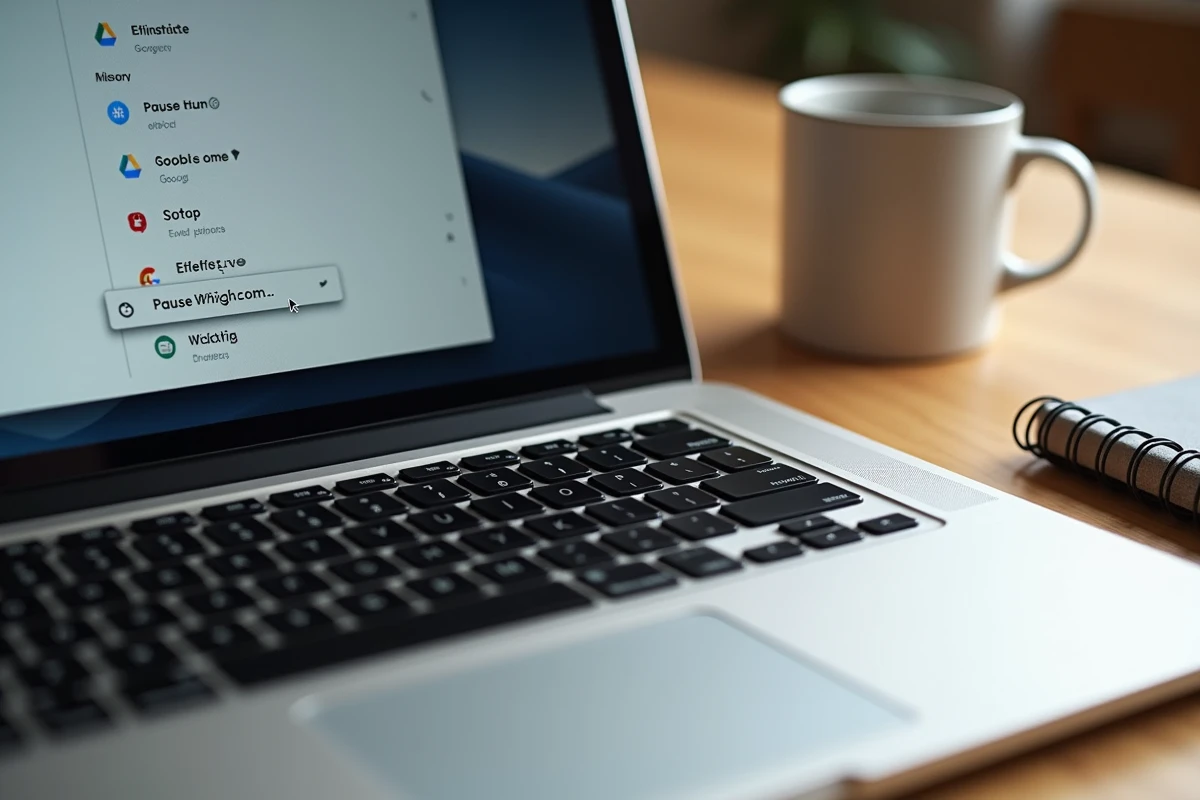
- Open the Google Drive application from the taskbar (Windows) or the menu bar (macOS), then go to Preferences.
- In the My Computer tab, identify the folders synchronized to the cloud. Uncheck those you want to exclude: the local files in these folders will not be deleted.
- In the Google Drive tab, switch from streaming to mirroring if you want to keep a complete local copy before stopping global synchronization.
- For a complete stop, click on your avatar, then on Quit. The application ceases all synchronization activity without affecting the files already present on the disk.
Quitting the application does not uninstall it. It remains available for a later restart. This approach is suitable for users who want to temporarily suspend synchronization without permanently changing their configuration.
Case of ghost files on Windows 11
Since the 24H2 update of Windows 11, users have reported a phenomenon of ghost files post-desynchronization. Documents appear in Explorer but generate access errors when opened, caused by residual system locks. The Microsoft Community forum has recorded several hundred reports on this issue.
The solution is to restart the computer after quitting Google Drive, then check that the GoogleDriveFS.exe process is no longer active in the Task Manager. If the lock persists, renaming the affected folder forces Windows to release the reference.
Impact of Google Drive desynchronization on laptop battery in mobile mode
Tutorials on desynchronization are limited to managing disk space and privacy. The effect on battery life, although measurable, remains ignored.
Google Drive for computer maintains a permanent background process that monitors file changes. On a laptop in offline mode (airplane, train, areas without Wi-Fi), this process continues to run and attempts network connections at regular intervals. Each reconnection attempt puts a strain on the network card and consumes energy, even in the absence of data to transfer.
On hybrid laptops equipped with heterogeneous architecture processors (high-performance cores and efficient cores), the synchronization process may force the system to activate the high-performance cores to handle file checks. Quitting the Google Drive application before moving without a network removes this load.
This logic also applies to Google Photos if automatic backup is enabled on a local image folder. Disabling synchronization of this specific folder in the application settings reduces background processor demand.
Uninstall Google Drive without deleting cloud or local files
If the goal goes beyond suspension and aims for a complete removal of the application, the procedure protects data as long as a specific order is followed.
- First, quit the application via its menu (not via Task Manager).
- Ensure that your local files are indeed in a standard disk folder (Documents, Desktop) and not only in the Google Drive virtual drive (drive letter G: or H: on Windows).
- Uninstall the application via Settings, then Apps on Windows, or by dragging it to the trash on macOS.
The files remain intact in Google Drive cloud after uninstallation. They remain accessible via drive.google.com from a browser. Local copies in mirror mode persist in their original folder on the disk.
After uninstallation, the Google Drive cache folder (usually located in AppData on Windows) may occupy several hundred megabytes. Manually delete it to reclaim this storage space.
Desynchronizing Google Drive is more about choosing a mode of operation than a risky technical gesture. Identifying the actual status of your files (streamed or mirrored) before any action remains the only precaution that matters.